
 Reefwise
Help
Organise an event and run a poll
Create an outing or a course, follow registrations, approve photos, notify members and ask the club with a poll.
What it is for
You publish the club's outings and courses, you know who is coming, and you collect the members' opinion with a poll. Registrations, the waiting list and car sharing then run by themselves.
Before you start
- Be an administrator of the club or hold the Communication function, which gives events, polls and Notify members. The Events function is display only, with no right. The Treasurer follows the registrations and their payments (Registrations), without editing the event or sending reminders.
- On the iPhone and Android, the club administration only shows the sections of your functions: events, registrations, photos, polls and notifications for Communication; only the registration payments for the treasurer, without creating, editing or reminding.
- An active season: an event belongs to the current season, and only its accepted members can register.
Create an event (web space)
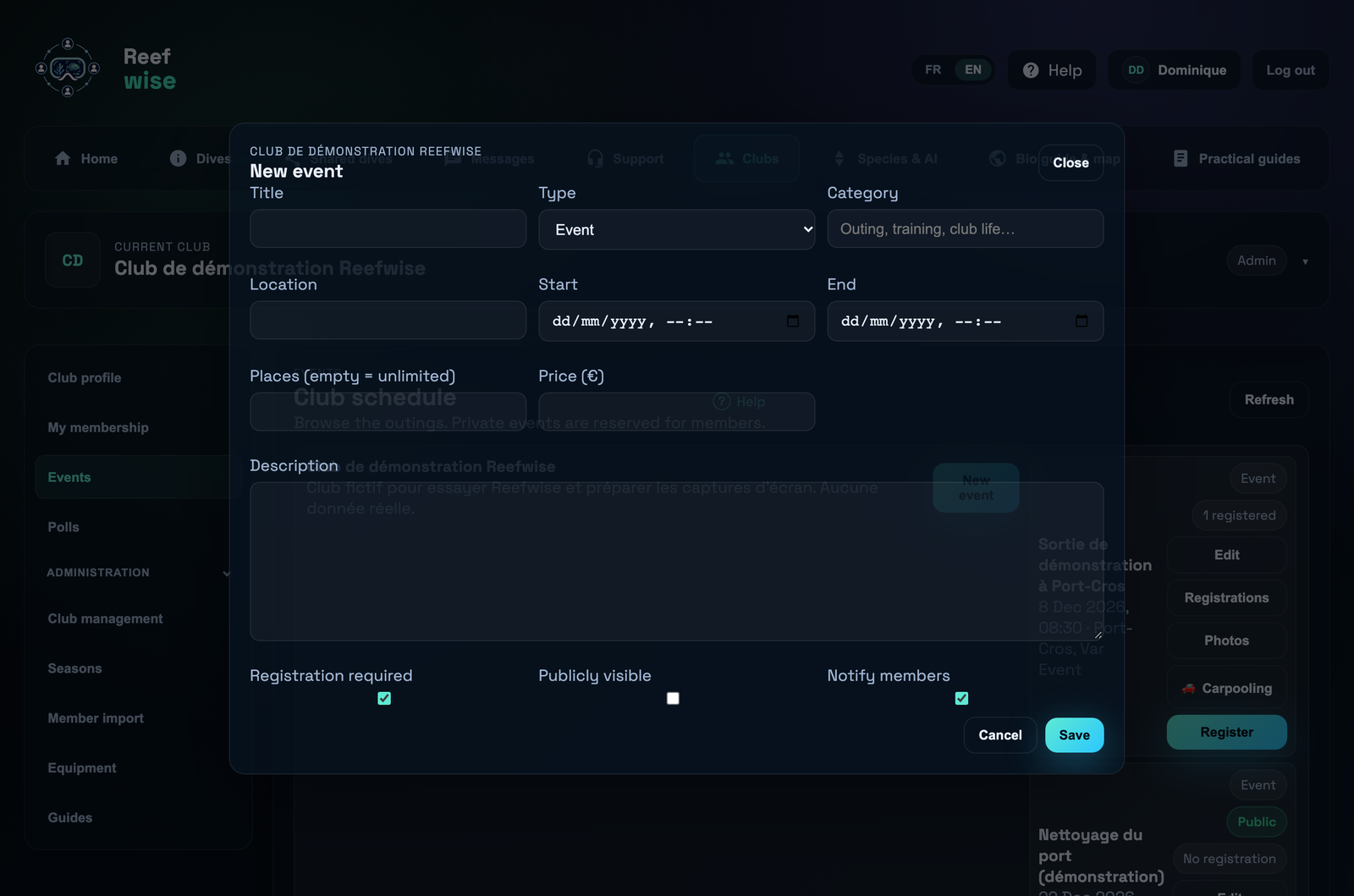
- Open Clubs, tab Events, then New event.
- Fill in the Title and the Start (required), then the Location, the End, the Description and the Category (free text: outing, training, club life).
- Choose the Type: Event, Practical course or Theory course. A course needs at least one activity, with its places and its Allowed levels (“N1, N2”, empty for all).
- Set the options of the table below.
- Notify members is ticked by default: untick it to tell no one, then save.
| Option | Effect |
|---|---|
| Places (empty = unlimited) | Once full, the next registrations go to the waiting list. |
| Price (€) | Displayed only: there is no online payment. |
| Registration required | Unticked, nobody can register or unregister. |
| Publicly visible | The event appears on the public site and for the accepted followers of the club. |
On the iPhone: club administration dashboard, Events, button +. There is no category there.
Event creation window
Follow registrations
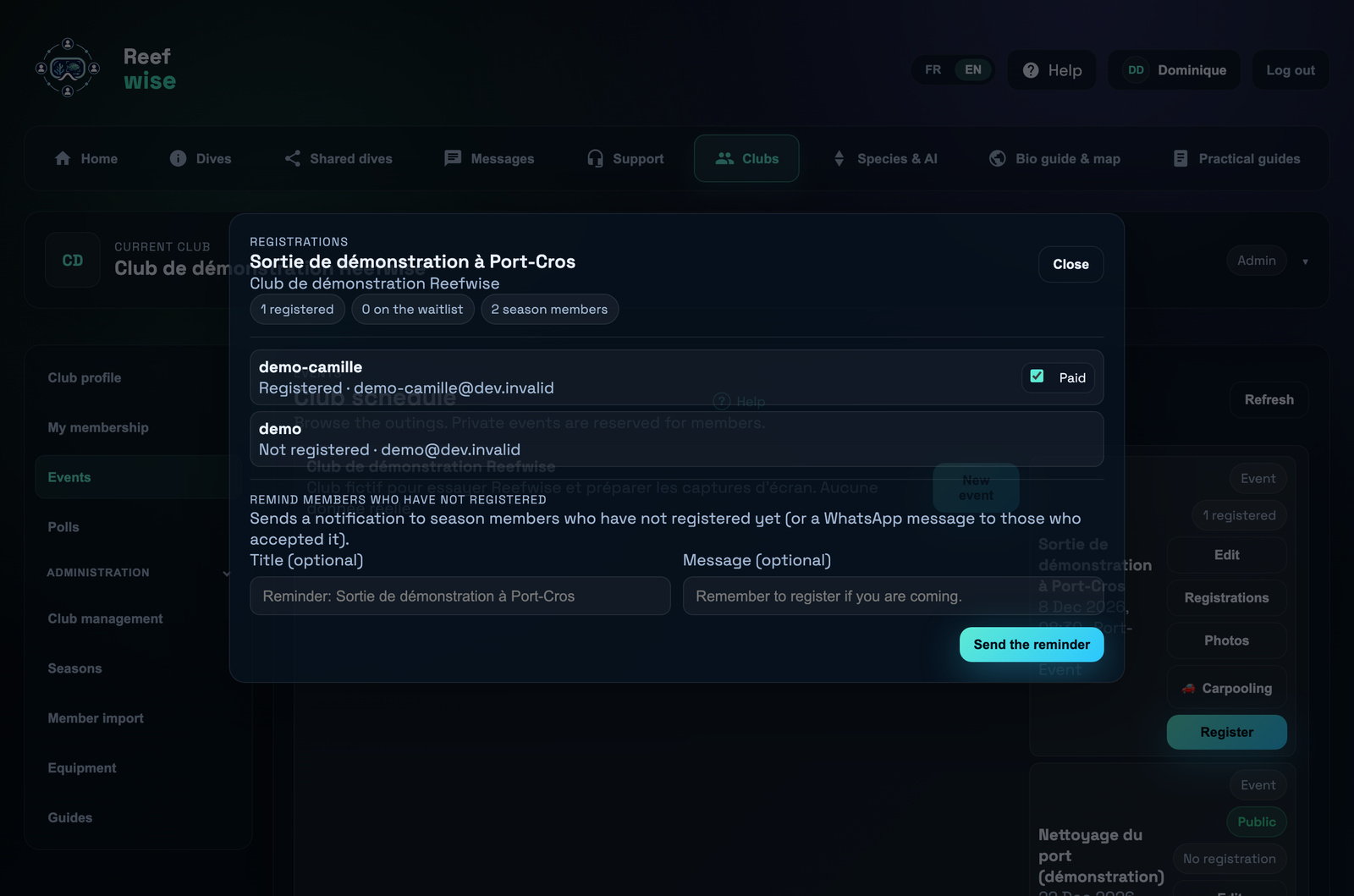
- On the event, open Registrations: every member of the season is listed, registered, on the waiting list (with their position) or not registered.
- Tick Paid when a participant has paid.
- Remind members who have not registered sends a reminder, then Send the reminder.
You cannot register or unregister someone on their behalf. When a registered member cancels, the first person on the waiting list is registered and told automatically. When you raise the number of places, the first people on the waiting list are registered and told at once. The reminder only reaches members who have not registered, not the waiting list.
Registrations window of an event
Change or cancel an event
When editing, tick Notify the registered members (unticked by default) to send the registered members and the waiting list a notification and an e-mail about the change.
To cancel, open the event for editing, then Cancel the event, add a message to the participants if needed and confirm. The event stays visible, marked Cancelled, registration closes and its content can no longer be changed. The registered members and the waiting list are told by notification and e-mail, in French for now. There is no permanent deletion: archive the event to remove it from the members' list.
Event photos
Registered participants can send photos; they wait for your decision in Photos. Approve publishes them. Reject asks for a Reason for rejection, sent to the author, and deletes the photo. Your own photos are published right away.
Notify the members
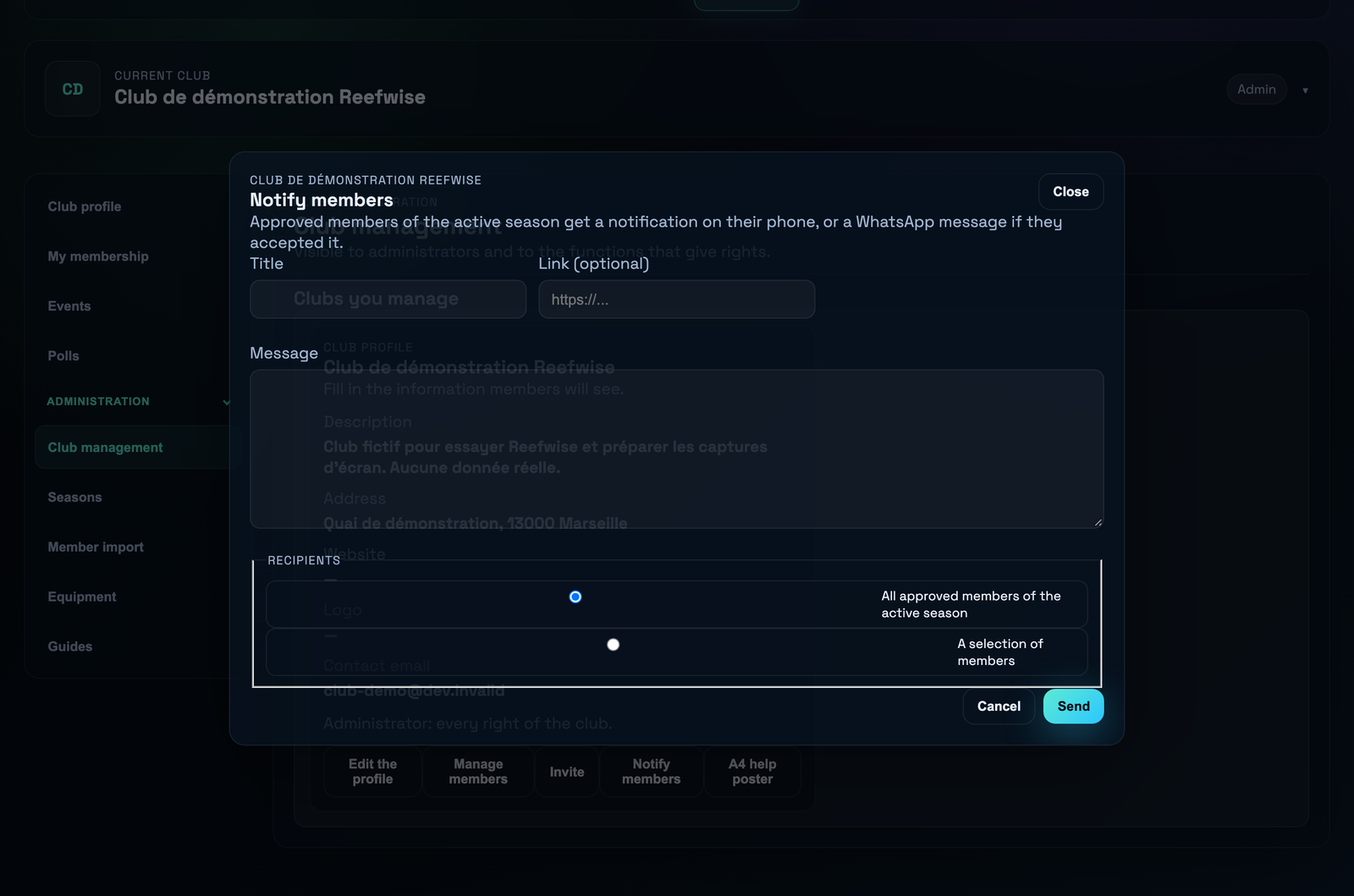
In the Club management tab (Administration group), Notify members sends a title, a message and an optional link to All approved members of the active season or to A selection of members. The message is sent as a notification on the phone, not by e-mail, and plain followers do not receive it.
Member notification window
Run a poll
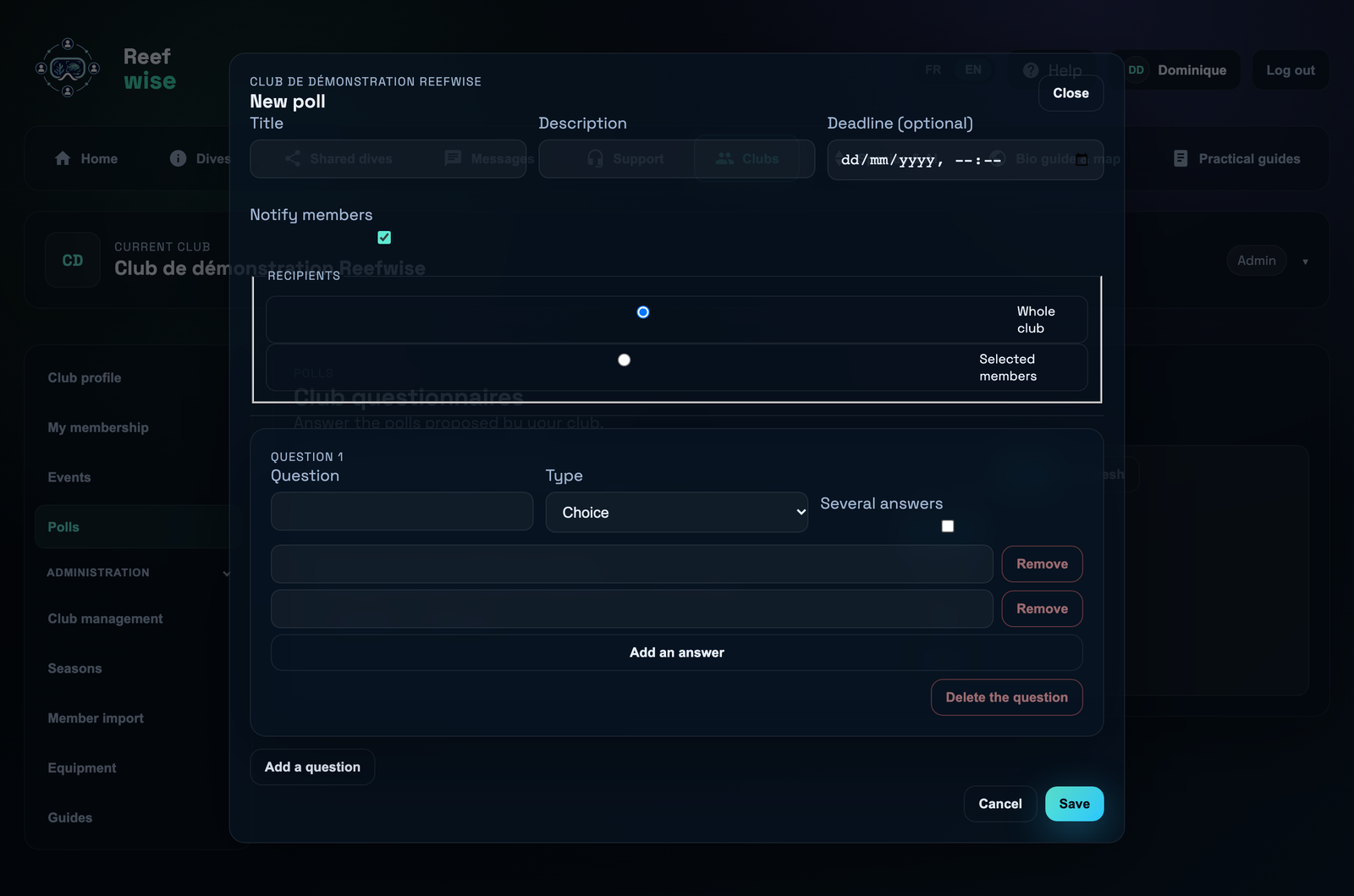
- Tab Polls, Add.
- Give a title, then your questions: Choice (at least two answers, Several answers possible) or Free answer.
- Choose Whole club or Selected members, then save.
- Results shows the answers, which can be exported to Excel.
A member cannot change their answer, and the questions are locked from the first answer. An optional Deadline closes the poll: after it, answers are refused, and you keep the results. You can also archive the poll, or Delete it with all its answers, after a confirmation.
Poll creation window
Good to know
- Archiving an event sends no notification; a change sends one only when you tick Notify the registered members.
- As soon as a member is registered, the type and the activities can no longer be changed.
- An archived event is no longer visible to the members, even when it is public.
- The public site only shows the public events of the active season. It updates within about five minutes.
- The approved photos of a public event are visible to everyone on the public site.
- A poll is not anonymous: administrators and the Communication function see who answered, and the member is told so before answering.
- A poll created before the active season began is no longer offered to the members; you keep its results.
- The export of registrations (CSV) only exists on the iPhone.
Going further
On the member side, registration and car sharing are described in “Register for an event and answer a poll”.