
 Reefwise
Help
Create and set up your club
Request the creation of your club, complete its profile, logo and signature, understand what is public and who administers.
What it is for
Your club gets its page on the public site and its management space. This page covers the creation of the club and its first settings.
Before you start
- Give in the request the e-mail address of your Reefwise account: it is what gives you administrator rights when the club is created. Without an account at this address, one is created for you when the request is accepted (see “Create an account”).
- The setup is done in the web space. The iPhone gives access to the club tools, not to its profile.
Request the creation of the club
- On the public site, open Clubs and scroll down to the Suggest a club block, “Add your club”.
- Fill in the Club name and the Email (required), then the Contact name and a Description (optional).
- Click Send request. The message “Thanks! Your request has been submitted.” confirms.
- The Reefwise team reviews the request and creates the club with a first season. You become its administrator; the Reefwise team member who accepts the request does not join the club.
An e-mail tells you the decision. If the request is accepted and you had no account yet, a second e-mail contains the link to choose your password. If the club does not appear in your space after it is created, check that your account uses the address given in the request.
Complete the club profile
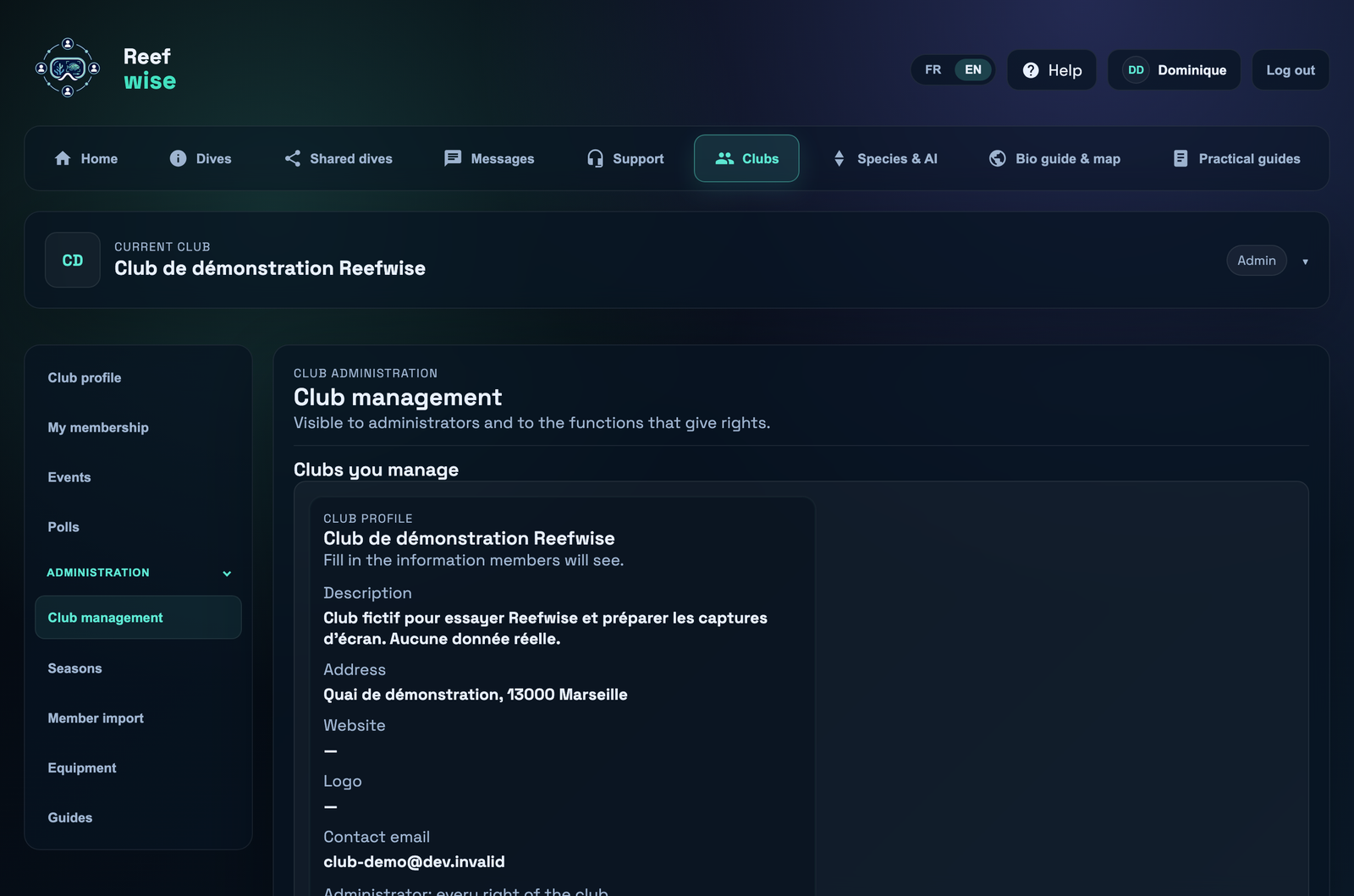
- In the web space, open Clubs. If you belong to several clubs, choose yours in the Current club switcher at the top of the page (club logo and name). Then open the Administration group, tab Club management.
- Click Edit the profile.
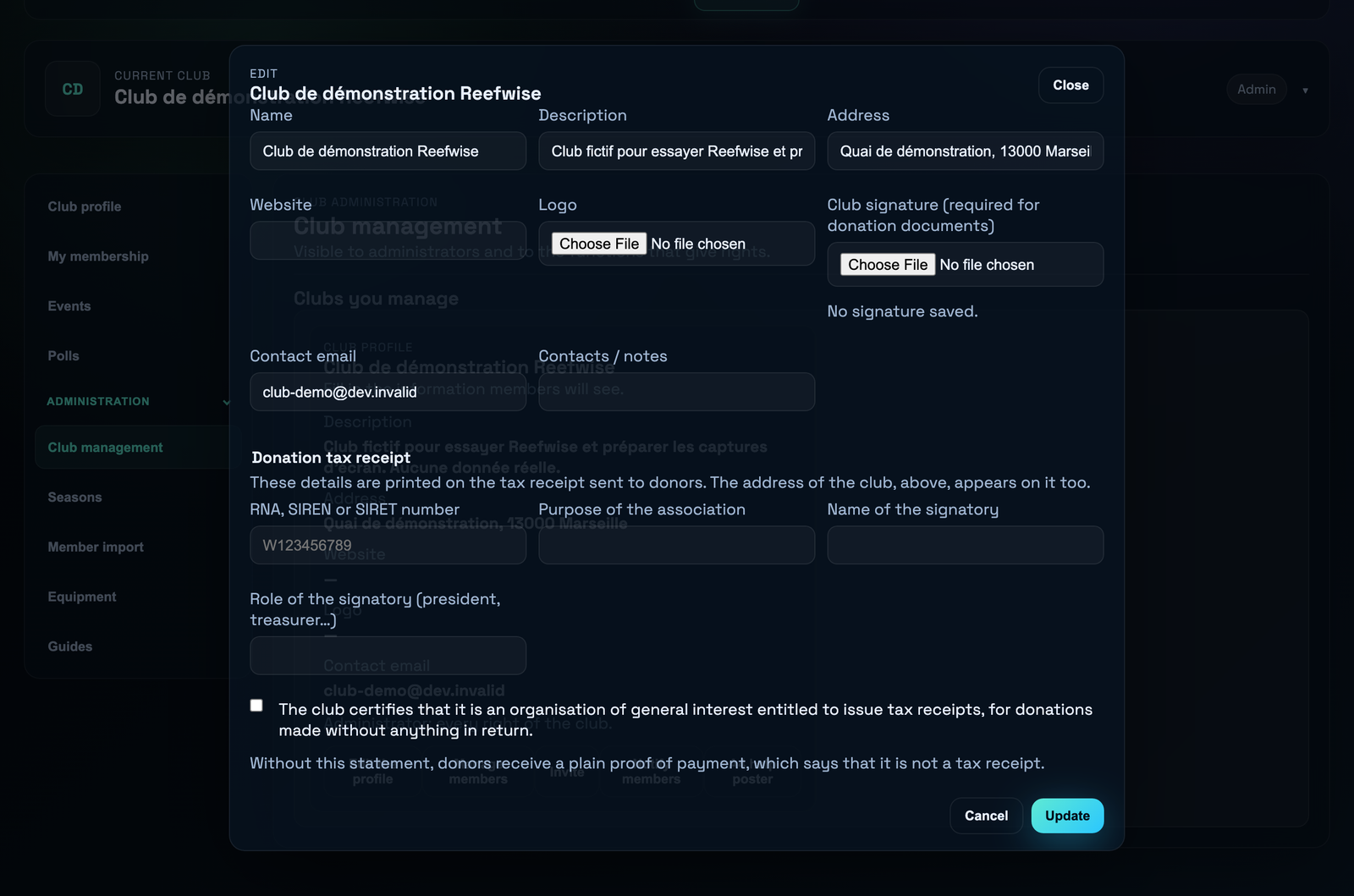
- Complete the fields of the table, then Update.
| Field | Where it appears |
|---|---|
| Name, Description, Address, Website | Club page on the public site and donation documents. |
| Logo (JPEG, PNG, WebP or HEIC image, 20 MB at most, saved again without its metadata) | Club directory, club page and donation documents. |
| Club signature | Donation documents only, for which it is required. It is neither published nor shown to members: only the administrators, the Board and the treasurer see it. |
| Contact email | Proofs of donation. It is shown neither on the public site nor to members: only the administrators, the Board and the treasurer see it. |
| Donation tax receipt | RNA or SIREN number, purpose, signatory and statement of the club (see “Issue a donation receipt”). |
| Contacts / notes | Internal reminder (president, technical lead). Reserved to the administrators, the Board and the treasurer. |
Club management tab with the club profile and its actions
Club profile editing window
What is public
Every club is listed in the directory of the public site: there is no setting to hide a club. The club page shows its name, description, address, website, logo, its events marked “Publicly visible” and its guides open to everyone. Members, registrations and shared dives are never public.
Who administers the club
- Administrator: has access to all the club tools. In Manage members, Make admin and Remove admin give or remove this role for a member of the current season.
- Member: accepted member of the active season.
- Follower: someone whose follow the club accepted, without a membership.
- The functions give a member precise rights without making them an administrator. A person can hold several: their rights add up.
| Function | Rights |
|---|---|
| Treasurer | Season prices, payment follow-up, donation receipts and statements, event registration payments, member list. |
| Communication | Events (registrations, reminders, documents, photos), polls and member notifications. |
| Board | Club profile: information, logo, signature and legal information. |
| Equipment | Inventory and maintenance of the club equipment. |
| Instructor | Member list, review and publication of the Technique and Safety guides. |
| Writing | Writing the club practical guides and their image library. |
| Review | Review and publication of every club guide. |
| Secretariat, Events, Filling / Rescue | Display only, no right. |
Only the administrator manages seasons (creation, dates, opening, activation, archiving), accepts or refuses memberships and follows, names administrators, assigns functions, imports members and creates invitation codes. Rights follow the active season: only the functions of the accepted membership of the active season count.
The Clubs space shows one club at a time, the one of the Current club switcher. Members find Club profile, My membership, Events and Polls there. The club's administrators also see the Administration group: Club management, Seasons, Member import, Equipment (club inventory) and Guides. A member with a function only sees the tabs of their rights there, and the Club management tab lists Your rights in this club.
Good to know
- The club always keeps at least one administrator: the last one can neither remove their own role nor have their membership refused. Name a second one to hand over.
- Changing the Contact email gives no rights: to name an administrator, use Make admin.
- In Manage members, Functions and rights recalls what each function gives.
- A logo or a signature cannot be deleted, only replaced. Only JPEG, PNG, WebP or HEIC images are accepted (no SVG or PDF); they are saved again without their metadata.
- On the iPhone, the Manage my clubs icon opens Club administration, without the club profile. It also shows for a member whose function gives a right usable in the app.
- The iPhone and Android apps only show the sections the member's functions allow: for the treasurer, the season prices (by copying the active season's prices into them), registration payments, donation documents and the member list, read only; for Communication, events, polls and notifications; for Equipment, the equipment; for Instructor, the member list, read only. The club's legal information stays read only there without the Board function; on the iPhone, Board edits it. On the iPhone, Your rights in this club sums them up and a member's form shows the rights of each function.
Going further
Then open your season and bring your members in: see “Manage seasons and memberships”.