
 Reefwise
Help
Manage seasons and memberships
Open a season and its prices, bring members in by code, request, enrolment or import, then follow memberships and payments.
What it is for
The active season drives the club: its members, its events and its polls. You open the season, set its prices, then bring your members in and follow their payments.
Before you start
- Be an administrator of the club, in the web space: the iPhone lets you neither enter prices nor import members. Your club already has a first season, created with it.
- The Treasurer can also change the prices (Edit prices in the Seasons tab) and follow the payments in View members; creating, dating, opening, activating or archiving a season stays with the administrator.
- On the iPhone and Android, the treasurer only sees the sections of their function: the season prices, changed by copying the active season's prices, the payment follow-up and the donation documents. The member list is read only there; membership decisions, roles, functions and invitations only show to administrators. The Instructor reads the list there, read only.
Open a season
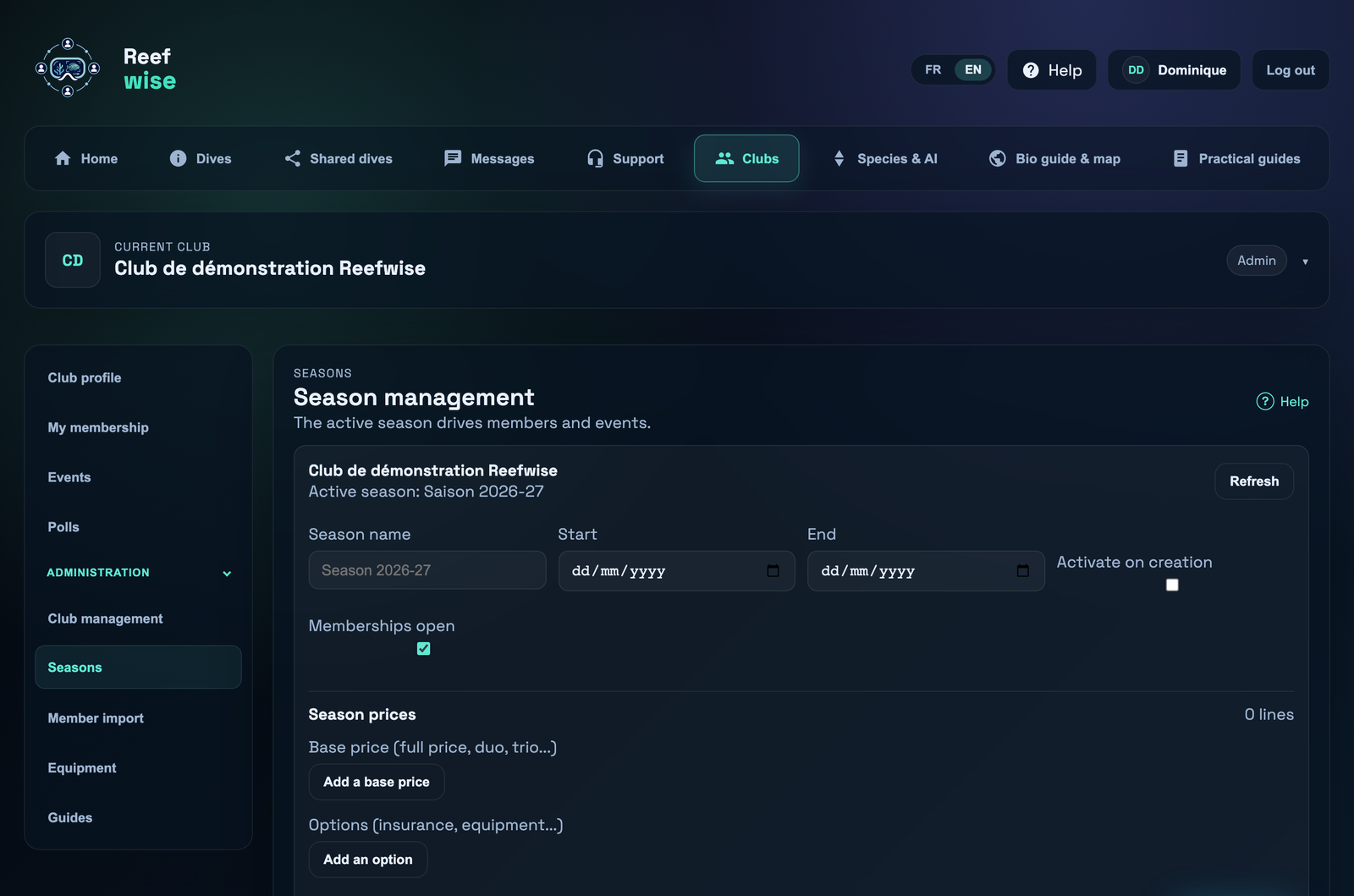
- Open Clubs, choose your club in the Current club switcher, then the Administration group, tab Seasons.
- Enter the Season name (“Season 2026-27”), then the Start and the End if you wish.
- Add at least one Base price (full price, duo, trio…): without it, no member can send a request. Add your Options (insurance, equipment…) with their choices.
- Leave Memberships open ticked, then Create season.
- When you are ready, Activate the season. For a later season, Copy prices from the active season avoids typing everything again.
Activating a new season only carries over the administrators. The other members must ask for their membership again or be enrolled by you; meanwhile, they stay followers of the club. Archive on a season closes its memberships and also archives all its events, after a confirmation; an archived season can no longer be activated. The active season stays active until another season is activated.
Seasons tab: creation and prices of the season
Bring the members in
| Way | How | Result |
|---|---|---|
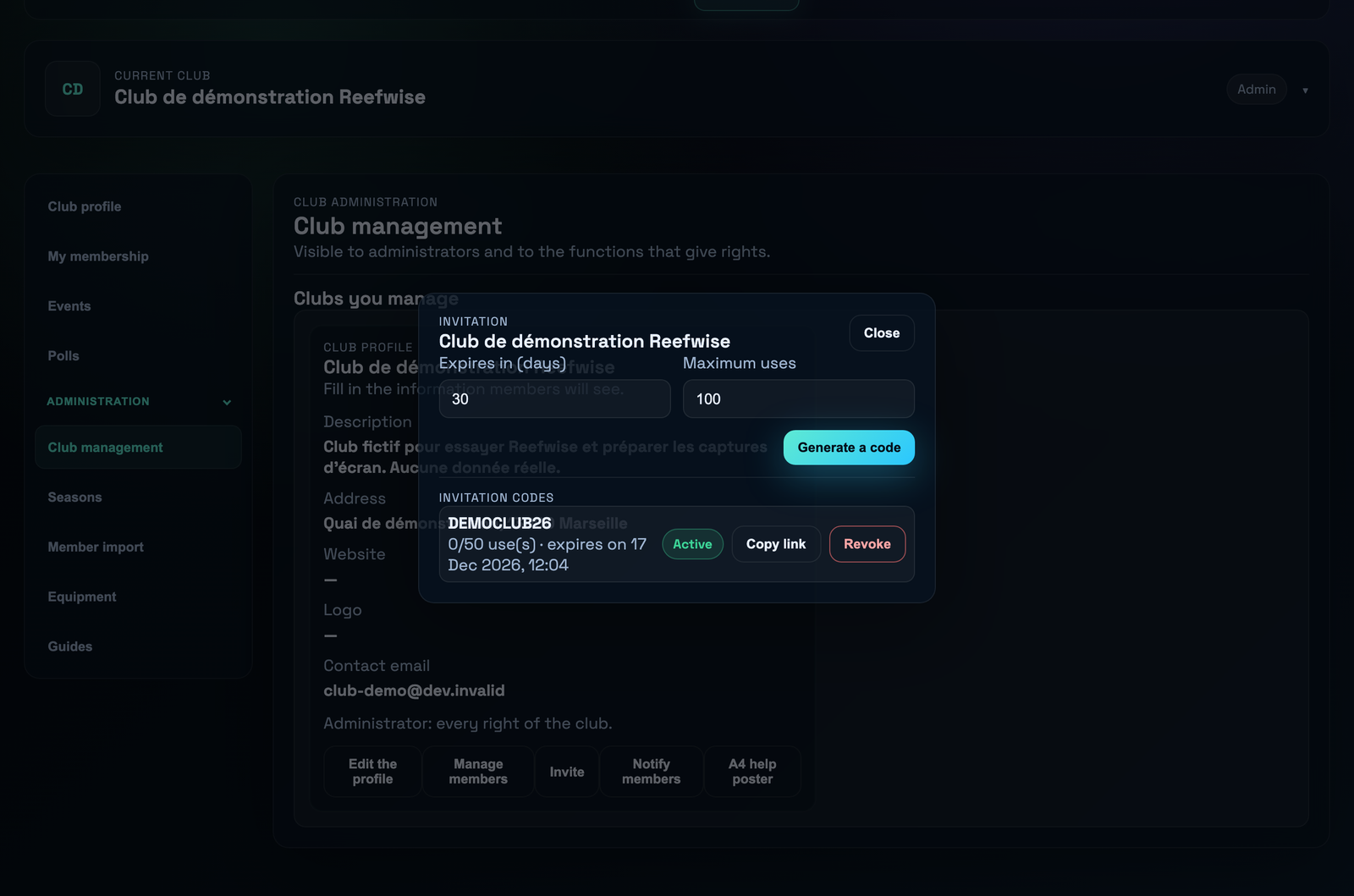
| Invitation code | Tab Club management, Invite: Expires in (days), Maximum uses, then Generate a code. The member types it on the iPhone, menu Join a club, or in the web space, in the Clubs tab of their account. | Membership accepted at once. |
| Member's request | They follow the club then fill in Create my membership. In Manage members, Pending requests: Accept or Decline. | Membership accepted by you; the member is told by e-mail and notification. |
| Enrolment by you | Manage members, Enrol in the active season: former members, administrators and followers. | Membership accepted, unpaid: the payment and the price start again from scratch. |
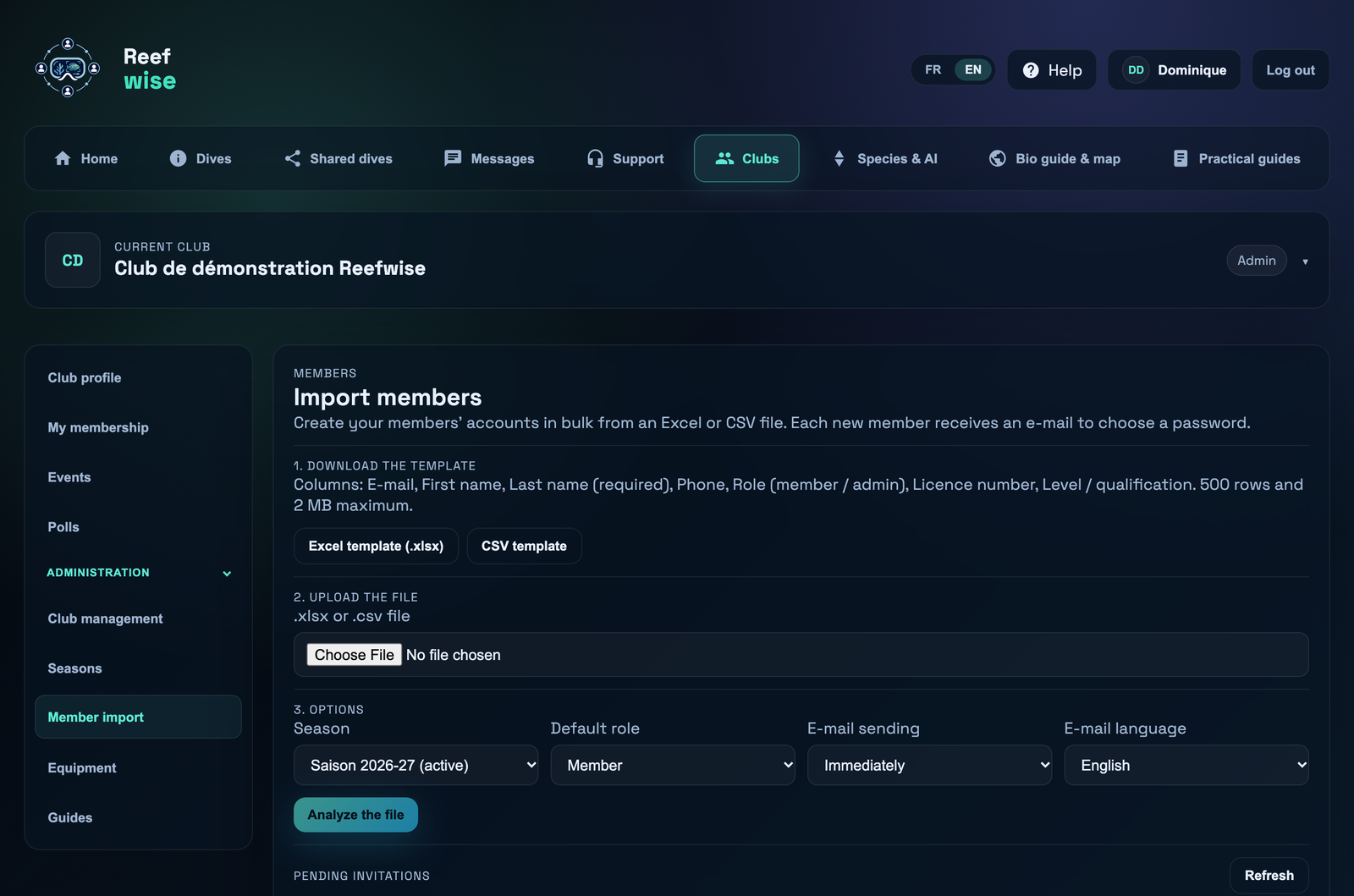
| File import | Tab Member import: Excel or CSV file, Analyze the file, then import. | Accounts created, memberships accepted, e-mail to set the password. |
Columns of the import file: E-mail, First name, Last name (required), Phone, Role, Licence number, Level / qualification; 500 rows and 2 MB at most. The licence number is kept on the season membership and shown to the administrators in Manage members. The import is refused while Memberships open is unticked for the season. The invitation stays valid for 7 days and is sent again from Pending invitations.
Invitation codes window of the club
Member import tab
Follow a member
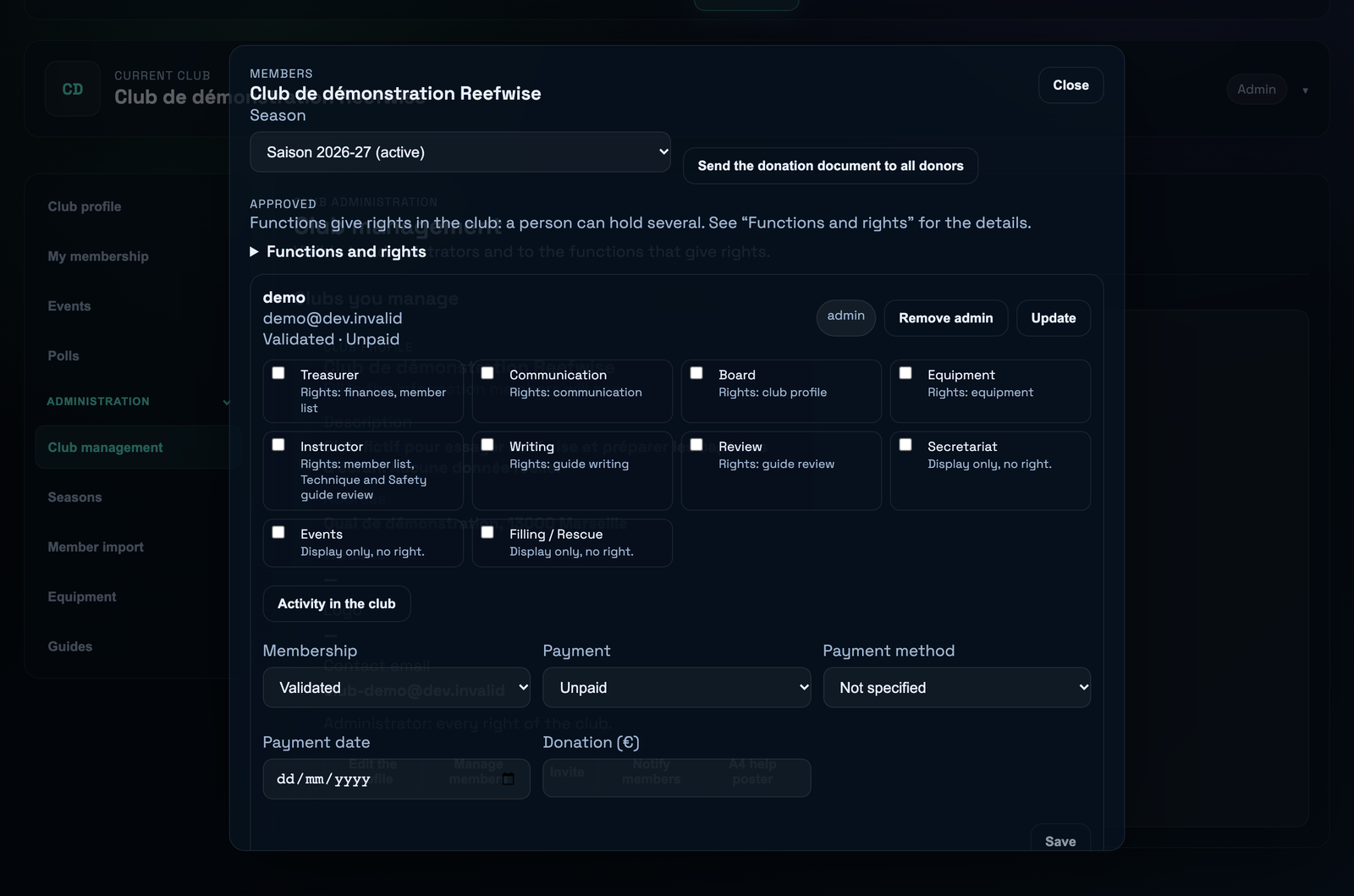
In Manage members, set for each member the Membership (Pending validation, Validated, Validated (prepaid), Validated and paid), the Payment (Unpaid, Partial, Paid) and the Donation (€), then Save. The treasurer does this follow-up like the administrator.
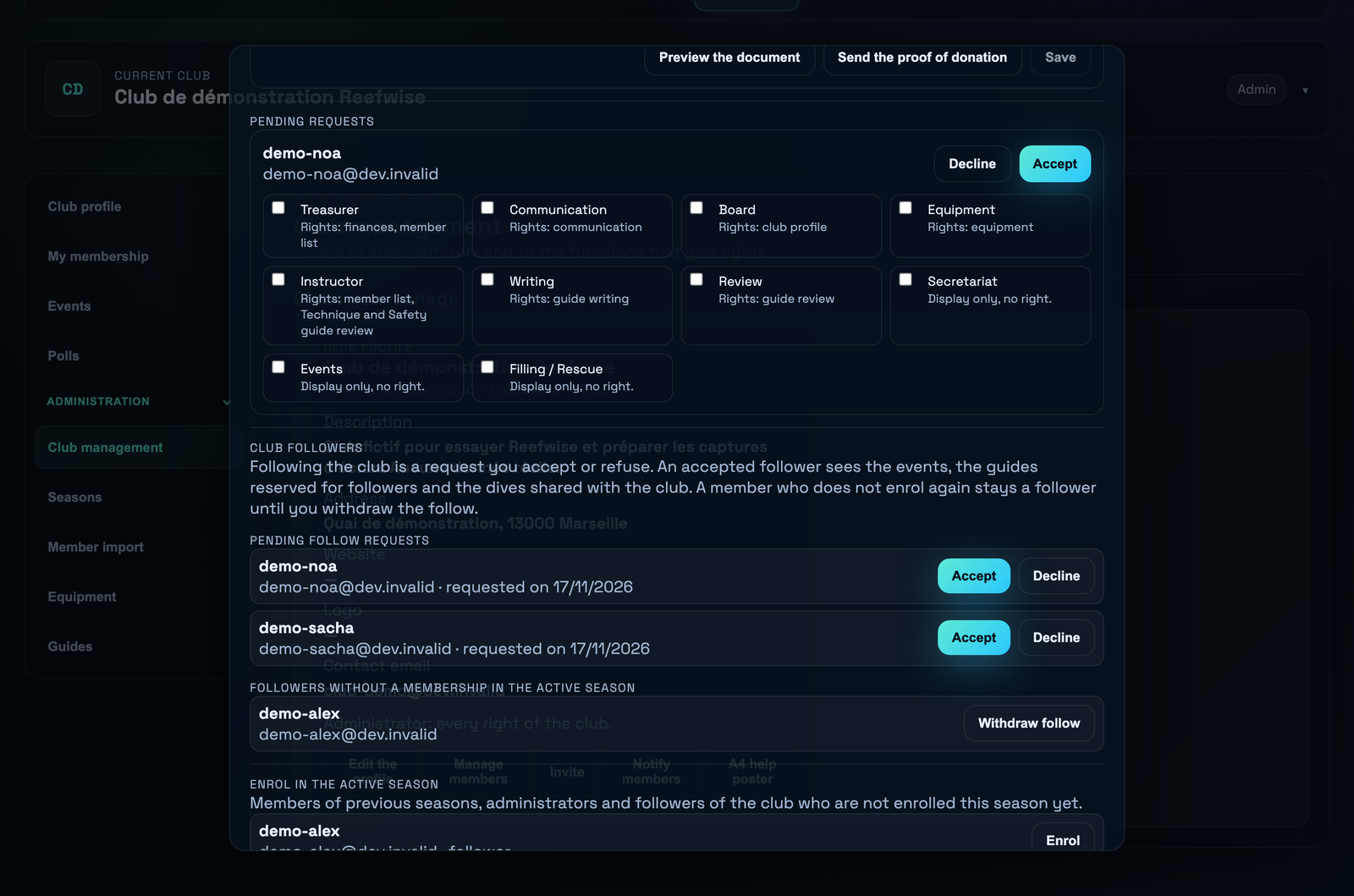
Tick their functions then Update. Each box states the rights it gives, and Functions and rights details them; a person can hold several functions and their rights add up (see “Create and set up your club”). Only Make admin gives every club right. Functions count on the active season: on a new season, Enrol in the active season keeps the functions of the latest membership; a membership coming from a request, a code or an import starts without functions, so tick them again.
The follow block of the same window lists the follow requests to Accept or Decline, and the followers without a membership whose follow you can withdraw by giving a reason.
Members window: approved members and pending requests
Club followers block: follow requests and followers
Good to know
- If an administrator's membership is no longer validated, their administrator rights are removed. The last administrator of the club can neither lose this role nor have their membership refused.
- A declined request stays visible under Others in Manage members; Accept takes it back.
- Past seasons can be viewed, with their financial follow-up only.
- Each new member who joins with an invitation code counts as one use; an exhausted code is refused. Revoke the code once everyone is in.
- An administrator imported on a season that is not active gets their rights when that season is activated.
- A function gives nothing until the membership of the active season is accepted, nor on a past season.
Going further
Tell your members that memberships are open: see “Welcome your members”. For donations: see “Issue a donation receipt”.