
 Reefwise
Help
Manage your account and your data
Edit your profile, email or password on iPhone or the web, protect your account, choose how your photos are used and delete your account.
What it is for
Your account gathers your dives, your photos and your memberships. This page shows where to change your details, how to protect access to the account, and how to remove your data.
Where the settings are
| You want to… | iPhone | Web space |
|---|---|---|
| Change your password | Settings, Account, Profile | Security tab |
| Recover a forgotten password | Sign-in screen | Sign-in page |
| Change your email address or your name | Settings, Account, Profile | Profile tab |
| Enter your phone and accept WhatsApp | Settings, Account, Profile | Not available |
| Choose who can message you and how you hear about your sessions | Settings, Account, Profile | Privacy and Notifications tabs |
| Choose the language of emails and notifications | Settings, Account, Profile | Profile tab |
| Enter your postal address, for the tax receipt of a donation to a club | Settings, Account, Profile | Profile tab |
| See your clubs and memberships | Settings, Account, Profile | Clubs tab |
| Turn on two-step verification | Not available | Security tab |
| Lock the app with Face ID or Touch ID | Settings, Account | Not applicable |
| Choose whether your photos improve identification | Settings | Privacy tab |
| Turn off the anonymous usage measure | Settings, Anonymous usage measure, Count anonymous usage | Not available |
| Delete the account | Settings, Account (or Profile) | Account tab |
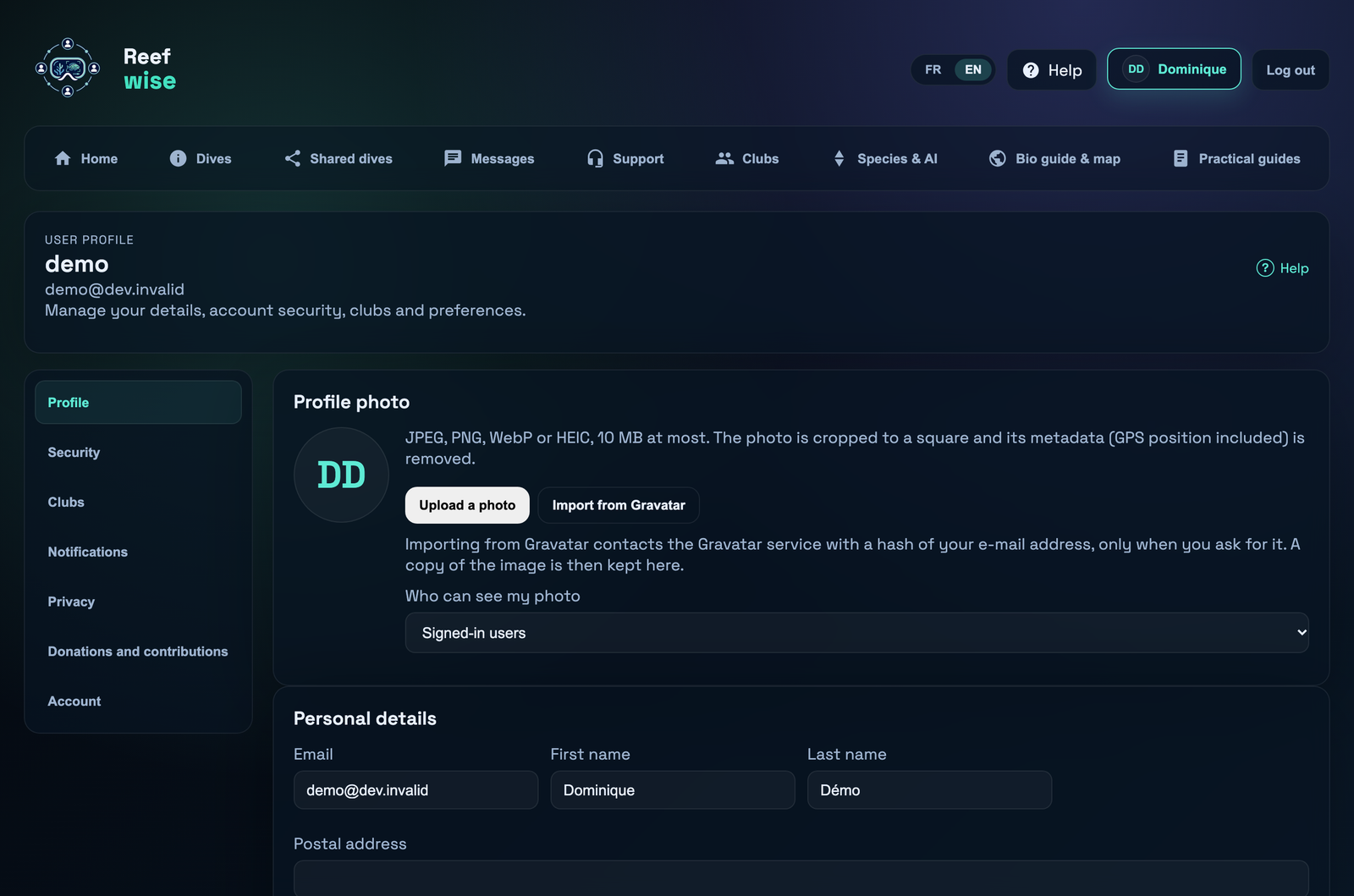
On the iPhone, the settings open with the gear icon. In the web space, the account page opens by clicking your first name, at the top right. It is organised in tabs: Profile, Security, Clubs, Notifications, Privacy, Donations and contributions and Account. Each tab saves its own settings: the changes made in another tab are not sent.
Profile tab of the account with the personal details
The profile on the iPhone
In Settings, Account, tap Profile. The screen shows the details of the web profile:
- Identity: the username, which cannot be changed, then the first and last names.
- Phone: the number, in international format, and Receive club messages on WhatsApp. Removing the number turns WhatsApp off.
- Preferences: Who can message me in the messaging, and Session notifications (corrections, moves to the trash, restorations).
- Language: the language of the emails and messages the server sends. Push notifications on the iPhone follow the language of the device.
- Postal address: printed, with your first and last names, on the tax receipt of a donation. Donation receipts, in Settings, Account, shows it and leads to the profile to change it.
Tap Save to send these changes. The screen also lists your Clubs, with your role or your pending follow request, and leads to Season membership and Find a club.
Password
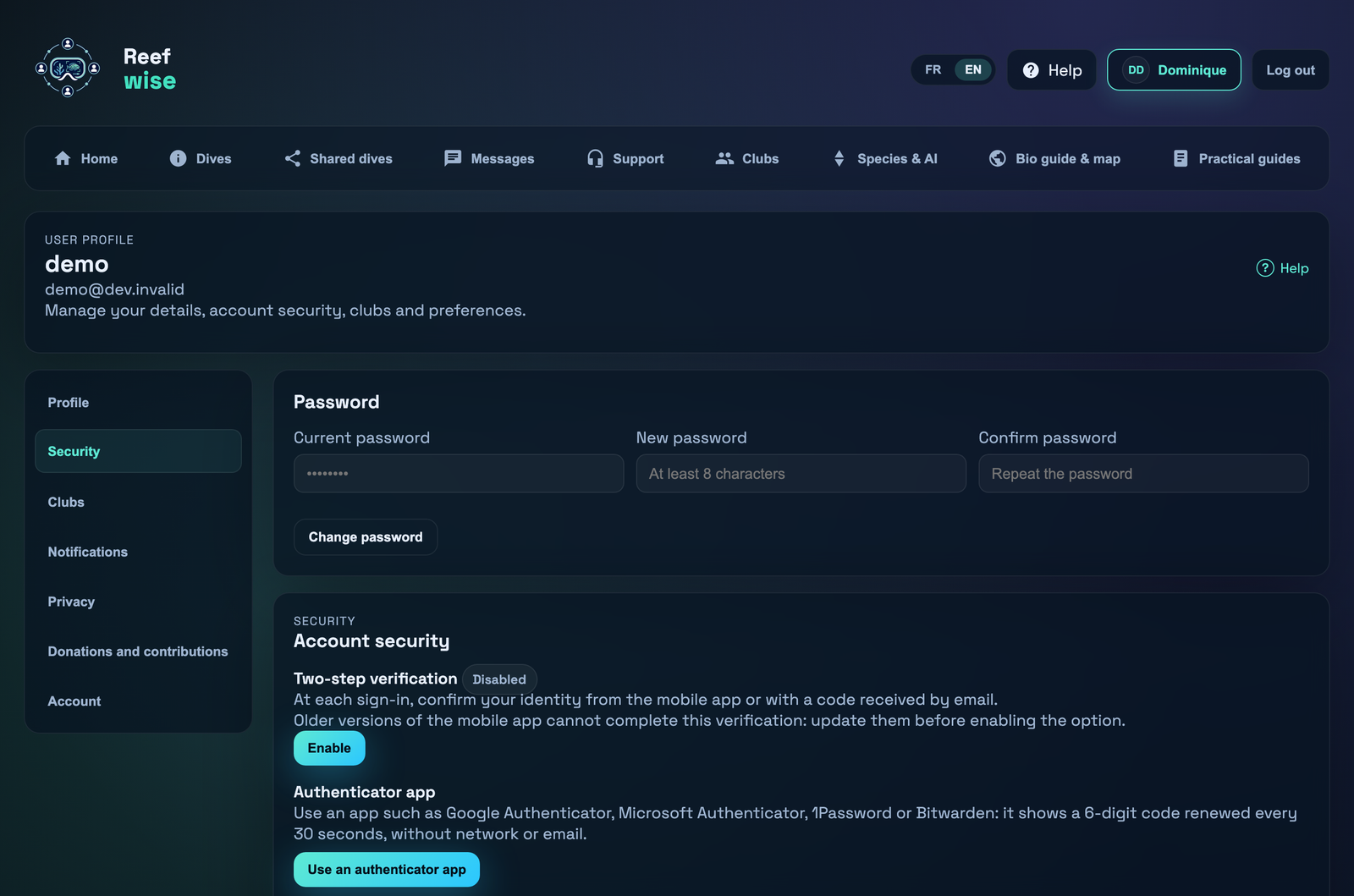
- Change it: on the iPhone, in Profile, tap Change the password. In the web space, Security tab. Fill in the current password, then the new one (at least 8 characters) twice. Your other devices are signed out.
- Account created with Apple or Google: it has no password. Choose a password creates one, confirmed with that Apple or Google account, so that you can also sign in with your username.
- Forgotten: on the sign-in screen, Forgot password?. On the iPhone, this link opens the site page in the browser. You receive a link by email, valid for 30 minutes.
Email address
- iPhone: in Profile, tap Change the e-mail address, type the new address and your current password, then Send the confirmation link. Web space: Profile tab, change Email, type your current password, then click Save profile.
- A confirmation link is sent to the new address. Open it within 24 hours. Until then, the former address stays in use.
Resend the link and Cancel the change are offered while the confirmation is pending. An account created with Apple or Google confirms the change with that account instead of the password.
Protect your account
- Two-step verification (web space): Security tab, Account security block, click Enable, type the code received by email, then write down your Recovery codes. You can then use an authenticator app.
- Active sessions (web space): Sign out all other sessions closes the access on your other devices, for instance after losing a phone.
- App lock (iPhone): in Account, turn on Unlock with Face ID (or Touch ID). The app then asks for your face or your fingerprint each time it opens.
Security tab of the account: password and account security
Your photos and better identification
The setting Share my photos to improve identification is off until you answer. When it is on, an administrator checks the species you validated before the fish crops can be used to train the recognition. You can change your mind at any time.
On the iPhone as on Android, the setting Count anonymous usage (section Anonymous usage measure) counts some actions, such as sharing a dive as a story. Only the action, its channel and the platform are sent, without account, device identifier or location, and no IP address is kept. You can turn it off at any time.
Delete your account
- iPhone: Settings, Account (or Profile), Delete my account. Web space: Account tab, section Danger zone.
- Type your password, then the confirmation word DELETE.
- Tap Permanently delete my account.
Deletion is immediate and cannot be undone. It removes from the server your dives, their photos and videos, your comments, your messages, your memberships and your registrations. Files stored on your iPhone, including the photos in the Photos app, are not removed. A club keeps the donation receipts it issued to you, with your name and address as they appear on them.
If you can no longer reach the account, the Data deletion page of the public site lets you ask for it: the team checks that the account is yours, then answers by email.
Good to know
- There is no global export of your data. Dives are exported one at a time in UDDF format (see “Import and export your logbook”).
- The iPhone permissions (camera, photos, location, notifications) are checked in Settings, Permissions section, with Open Settings to change them.
- In guest mode, there is no account: your data stays on the device.
Going further
To decide dive by dive what others see, see “Share a dive”.