
 Reefwise
Help
Analyse a photo
Run the AI analysis of a dive photo or video, read the detected fish and search a missed fish in an area.
What it is for
The AI analysis spots the fish on your photos and suggests a species for each one, with a confidence level. You then validate what is right.
Before you start
- Be signed in to your account.
- On the iPhone, the session must be synced: otherwise the AI analysis button does not appear.
- A photo, or a video with its thumbnail.
Every photo sent to the server is analysed automatically. Most of the time, the results are already there when you open the photo.
On the iPhone
- Open Session History, then the session.
- On the row of the photo, tap AI analysis. The Detected fish window opens.
- Read the state of the analysis: “AI analysis in progress…”, “This media has not been analysed yet.” or the list of fish. Pull down to refresh.
- If the photo has never been analysed, tap Identify with AI. The message “Analysis started. Results appear as soon as it is finished.” confirms the request.
- Look at the photo: each fish has a numbered box. Tap the photo to enlarge it.
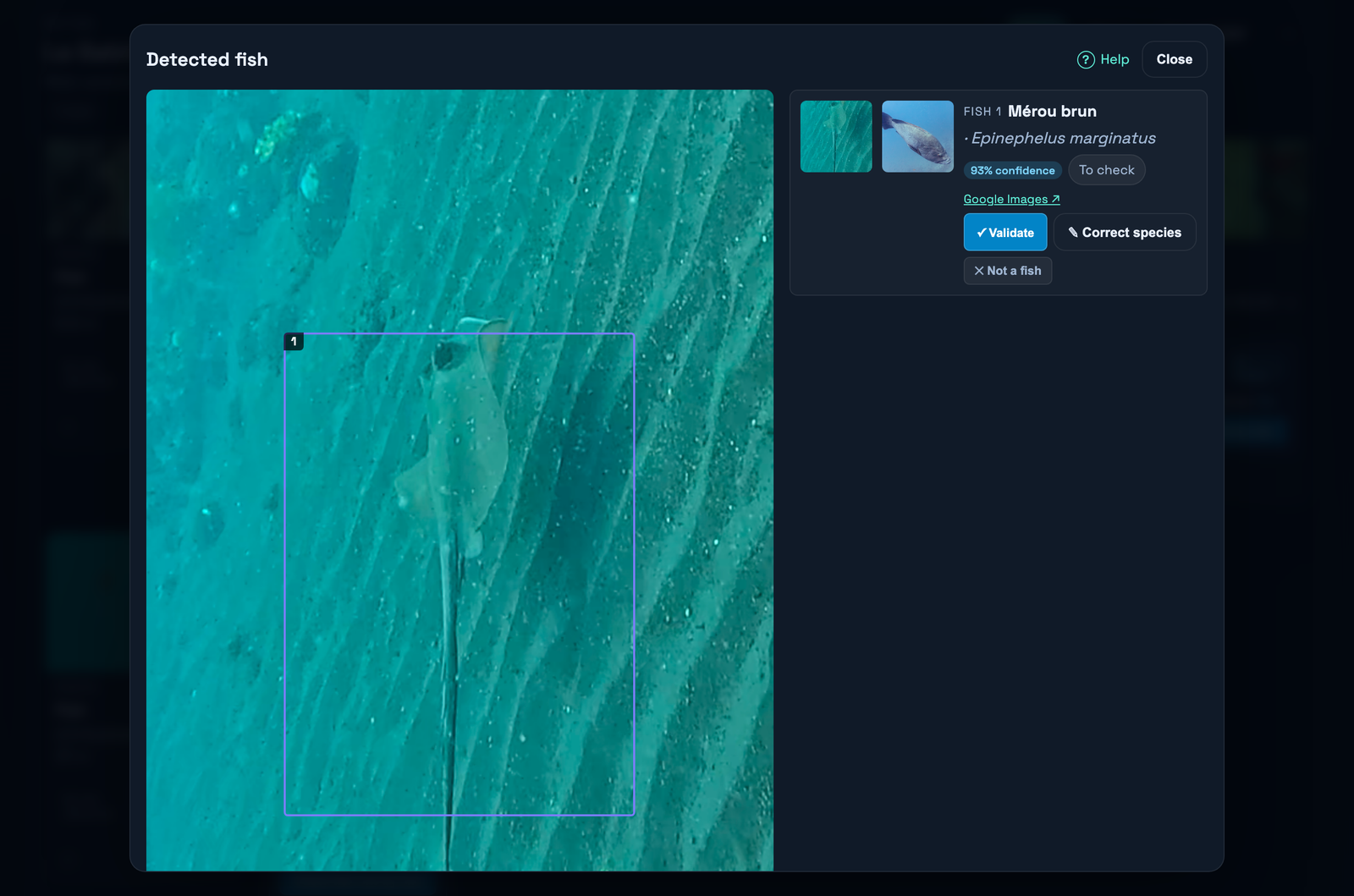
- In the list, each row shows “Fish 1”, the suggested species, its scientific name and “n% confidence”.
In the web space
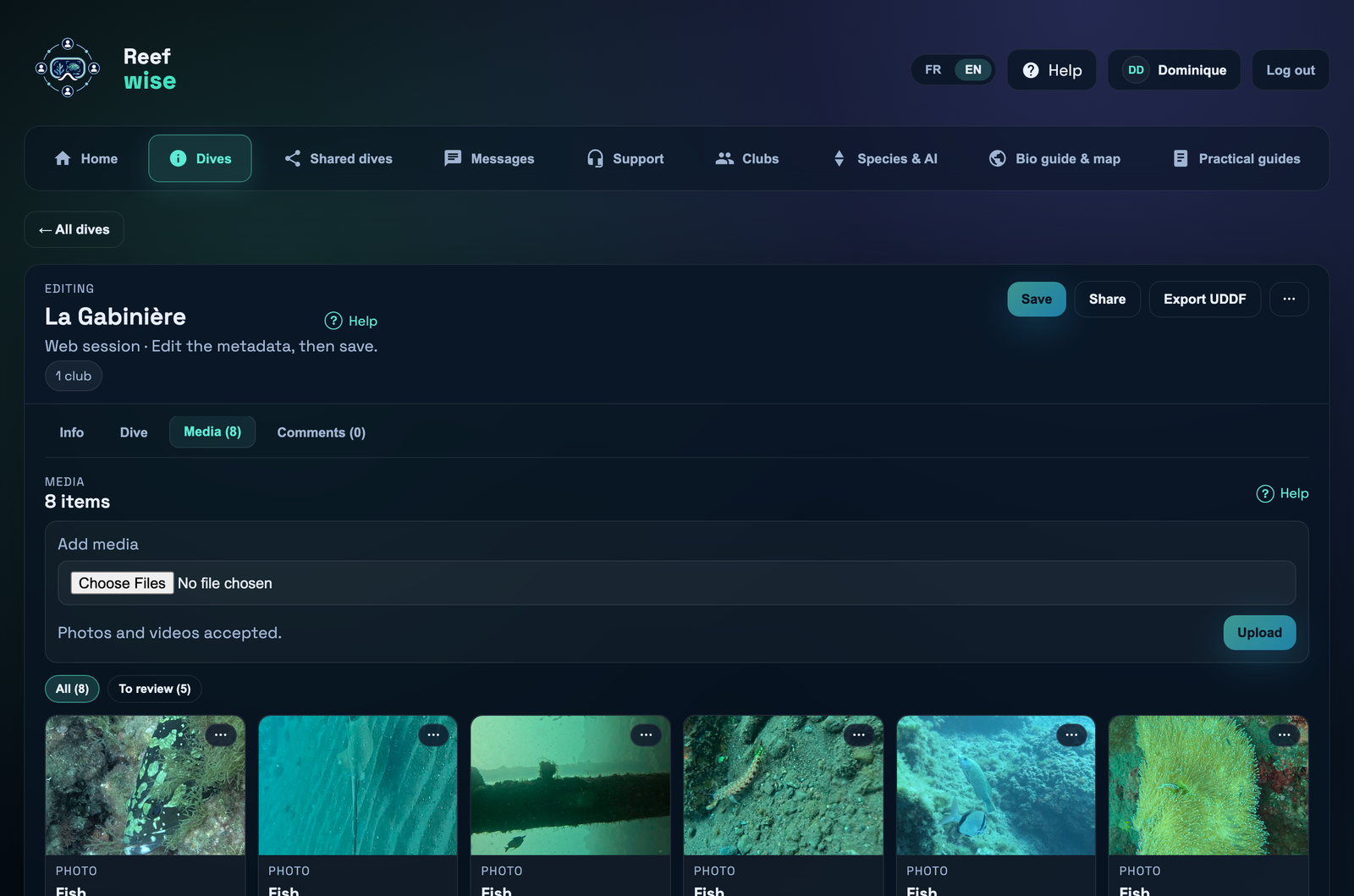
- In Dives, click the dive in the list, then open the Media tab.
- Each photo shows the state of the analysis. If it has not been analysed, click Identify with AI.
- When fish are detected, click Check fish one by one to open the Detected fish window.
Photos of a dive with the result of the analysis
Reading the results
| What you see | What it means |
|---|---|
| Yellow box, “To review” | The AI suggests a species: it is up to you to confirm or correct it. |
| Green box, “Validated” or “Corrected” | You have already checked this fish. |
| Red dashed box, “False positive” | You said this is not a fish. |
| “Unknown species” | The AI saw a fish without recognising it: correct it to validate it. |
| “No fish detected.” | Nothing was found: try the search in an area. |
| “On device” badge | The app already analysed the photo without a connection. The server analysis replaces it as soon as it is done; until then you can read the proposals but not check them yet. |
The percentage is the confidence of the AI, not a proof. A suggestion at 60% deserves a look at the catalogue.
Fish detected on a photo, to check one by one
A fish was missed
- On the iPhone, tap Search a fish in an area. In the web space, open the ⋯ menu of the photo and choose Search a fish in an area.
- Draw a rectangle around the fish by dragging on the photo.
- Tap Analyze this area. What is found is added to the existing detections.
Running the analysis again
- Retry the analysis appears if the analysis failed (“AI analysis unavailable.”).
- Reanalyze the whole image appears after you ignored the suggestion of the AI.
- A new analysis archives the checks already made on this photo.
A sharp photo, taken side-on, close and well lit, is recognised much more reliably. On a very blue or green photo, try the page “Optimise a photo” first: the corrected copy is analysed in turn.
Going further
The suggested species is not the right one? See the page “Change the detected species”.