
 Reefwise
Help
Change the detected species
Validate, correct or reject the species suggested by the AI on a photo, and check after the dive what the camera recognised.
What it is for
The AI suggests, you decide. Only the species you validate or correct count as Validated species of the session.
Before you start
- Be signed in, on one of your own sessions.
- For a photo: the AI analysis must be finished (see “Analyse a photo”).
On a photo, from the iPhone
- Open the session, then tap AI analysis on the photo.
- For each fish in the list, choose an action:
| Button | Effect |
|---|---|
| Validate | You confirm the suggested species. |
| Correct species | You choose another species. |
| Not a fish | The box is marked as a false positive. |
| Undo check | You undo your check. |
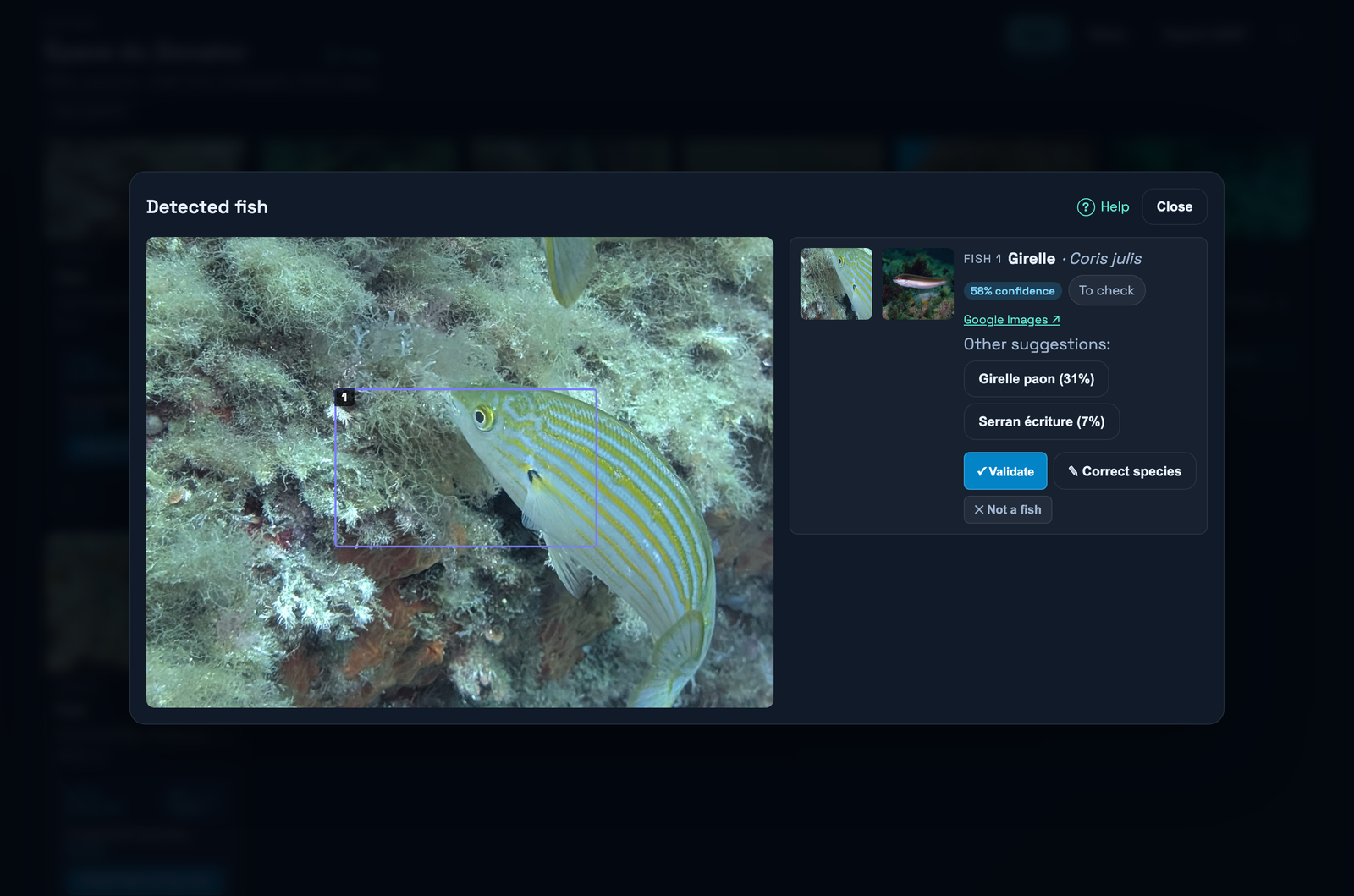
- If the right species is listed under Other suggestions:, tap it: the correction is done in one gesture.
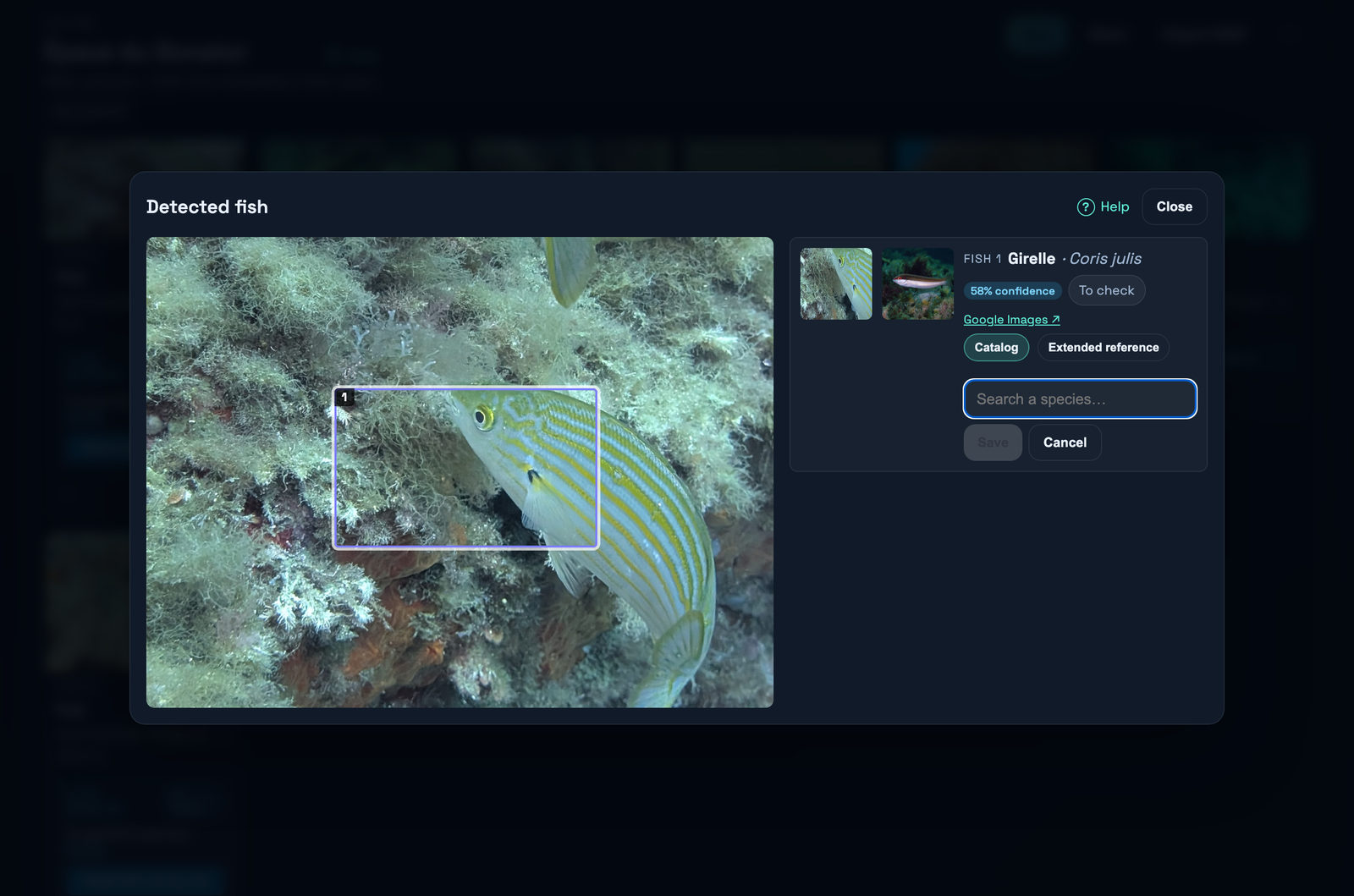
- Otherwise, tap Correct species, type a name in Search a species and choose in the list. If the species is not there, tap Use “your text” to keep the name you typed.
- Close the window. The checked species appear in the Validated species section of the session.
On a photo, from the web space
- In the Media tab of the session, click Check fish one by one.
- Use Validate, Correct species, Not a fish or Undo check.
- When correcting, search in Catalog or in Extended reference, then click Save. If nothing matches, the name you typed is kept.
Detected fish with other species suggestions
Species search to correct the detection
There is no fish on the photo
- iPhone: in the AI analysis section, tap No fish on this image, then confirm.
- Web space: ⋯ menu of the photo, No fish. There is no confirmation.
The species and the checks of this photo are then removed from the session.
What the camera recognised during the dive
The species recognised live during a New Session can be checked afterwards.
- Open the session and go to the Camera detections section.
- For each detection, tap Confirm, Correct or Not this fish. The other suggestions can be chosen in one gesture.
- On the iPhone, these checks are saved on the device: sync the session to send them.
In the web space, the same block is in the Info tab of the session.
Good to know
- While an analysis is running on the photo, the check is refused: “An analysis is running on this photo. Try again in a moment.”
- A new analysis of the photo archives your previous checks.
- The Good, Not good and Reanalyze buttons of a photo send feedback to the Reefwise team. Reanalyze is a request: it does not run the analysis again immediately, and you are told when it has been handled.
When in doubt between two species, leave the fish “To review” rather than validating at random. You can come back to it after checking the catalogue or asking an instructor.
Going further
A photo that is too blue makes identification difficult: see “Optimise a photo”.